The email address we ask you to send scheduled reports to is a private email address that belongs to your company alone. Your AppFolio scheduled reports go to it every week, and from there they land in your PropertyManagement.com account. Setting it up takes about a minute. For the reports themselves, follow How to Set Up AppFolio Scheduled Reports.
Before you start
- Who can do it: an account owner or admin on PropertyManagement.com. Anyone else sees a note to ask one of them.
- Connect the API if you can. The section opens with Connect AppFolio API. If you can issue AppFolio API credentials, connect the API instead, and your data syncs without any emails. The reports address is for companies that can't.
Create your unique email address
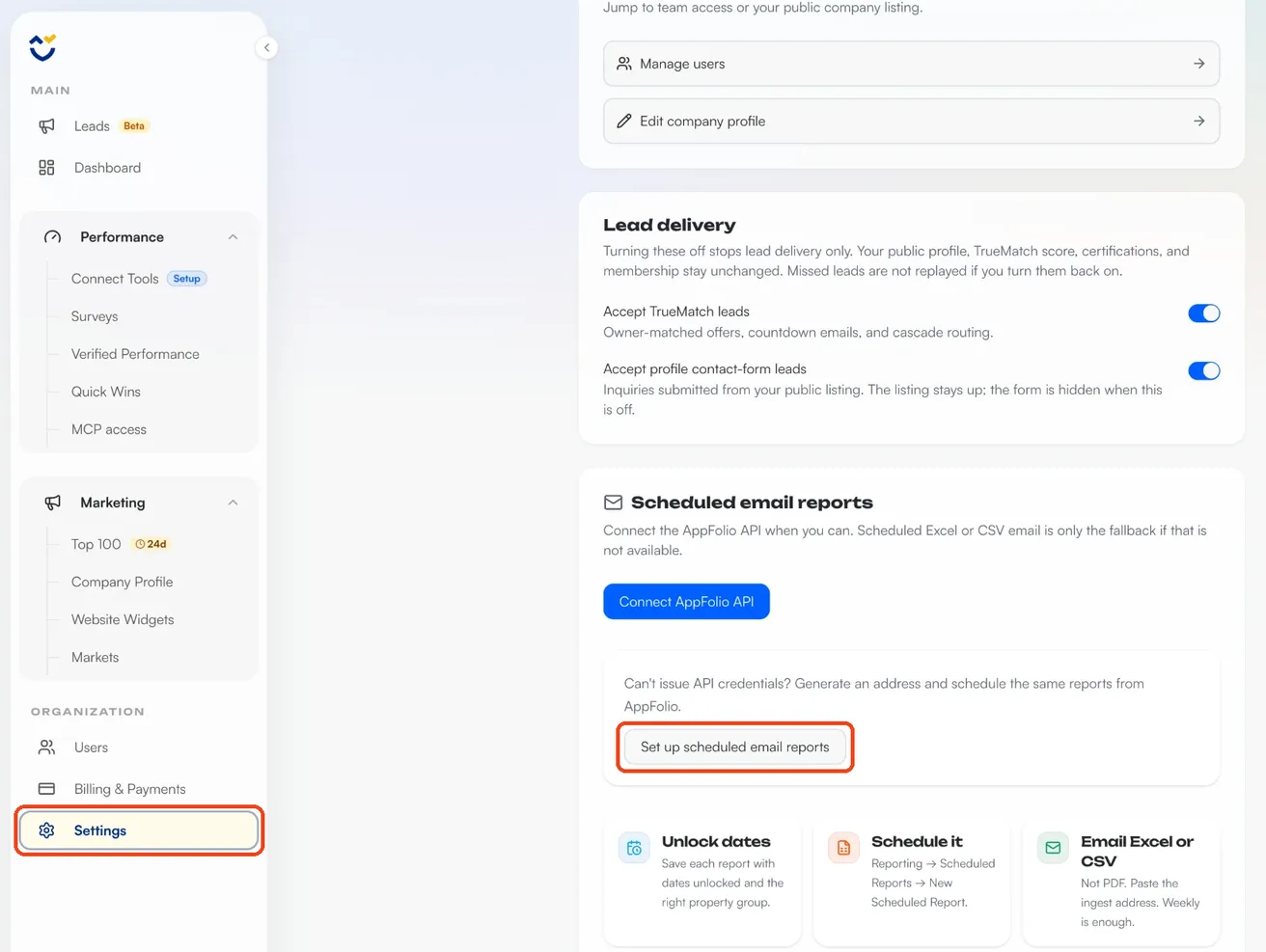
- In your dashboard, click Settings near the bottom of the left menu, under Organization.
- Scroll down to Scheduled email reports.
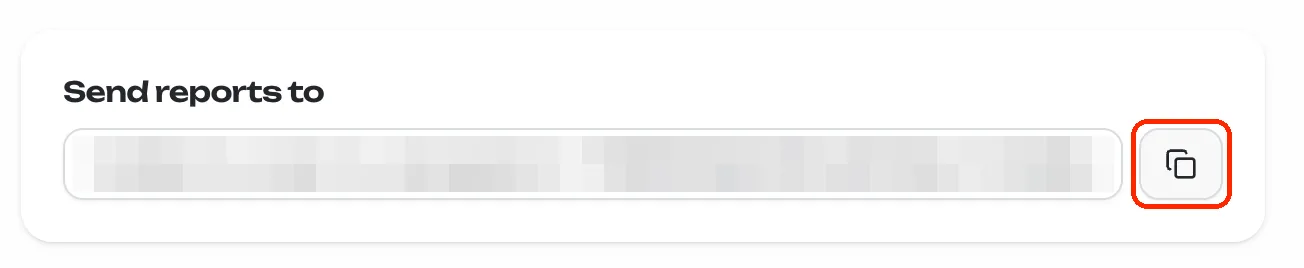
- Click Set up scheduled email reports. Your unique private email address appears under Send reports to.
- Click the copy button next to it.
- In AppFolio, open your scheduled report from Reporting > Scheduled Reports, paste the address into Recipients and press Enter.
You only do this once. Your address stays the same, and it's always in the same spot in Settings.
How your reports get in
- Delivery: each week your AppFolio schedule emails your reports to your address. The subject and message can say anything.
- Reading: we open every spreadsheet, match it to the report it came from and check it has the columns we need. Anything that isn't a spreadsheet is turned away.
- Large emails: if an email tops 20 MB, AppFolio sends a download link instead of attachments, and we collect the files from the link.
- Your account: your verified metrics recalculate from the new reports, and the property owner list behind your surveys refreshes. New zip codes are ready to add to your markets with Update from sync, and for members, the MCP connector sees the new data.
- Your file list: every file shows under Recent files, below your address, with its status: Ready to sync while it waits its turn, then Synced once it's in your account.
If a file shows a red status, such as Missing columns or Unrecognized report headers, that report's settings in AppFolio need a change. Email support@propertymanagement.com and we'll tell you which one. Your other files keep syncing in the meantime.
Keep your address private
- Your address is unique to your company and ends in a long random code, so no one can guess it.
- Paste it into AppFolio and nowhere else.
- If it's ever exposed, email support@propertymanagement.com and we'll issue a new one.
- Every system that holds your reports encrypts them. How we protect your data has the details.
Common questions
Do I need a separate address for each report?
No. One address takes all 13 reports in your weekly email.
Where do I find my address later?
In the same place: Settings, then Scheduled email reports, under Send reports to.
What happens if I connect the AppFolio API later?
Once your API sync is live, the Scheduled email reports section leaves Settings. Delete the schedule in AppFolio so it stops sending.