Set this up once and AppFolio emails your reports to PropertyManagement.com every week. The reports help us calculate your Occupancy, Rent Collection, Speedy Repair, Speedy Leasing and Lease Renewal metrics, with the same rules we use for companies connected through the AppFolio API, so your verified numbers stay current without another upload. For members, they also power the MCP connector in Claude or ChatGPT, so you can chat with your full suite of operational data on top of your survey results and the industry and market benchmarks from PropertyManagement.com.
What your reports do for you: they keep your verified metrics and your markets current. Your property addresses show us every zip code you actively manage, so property owners searching those zip codes can find you. For members, the same details feed the MCP connector. Once your reports land, members can ask Claude or ChatGPT about their own book in plain English: which leases end next month, what each vacant unit is listed at against market rent, which vendors their work orders go to, how much rent is still unpaid from last month. You get the answer in seconds, with no report to build. The more of your operation it can see, the more it can answer. If you're a member, connect PropertyManagement.com to Claude to try it.
What we ask for: details about your properties and how you run them, from addresses and unit details to rents, charges, leases, work orders and vendors. What stays in AppFolio: your people. Each report below names the columns to uncheck, so tenant names, tenant phone numbers and emails, property owner contact details and your staff's names never leave your account.
Who it's for: AppFolio companies that aren't connected through the AppFolio Reports API. Time: about 30 minutes, once.
The 12 reports
Twelve AppFolio reports, each saved once and sent together in one weekly email. Save each one with the exact name shown so we can tell the attachments apart. Each line shows the AppFolio report and the name to save it as, with the metrics it powers in parentheses. For members, all 12 also feed the MCP connector.
- Rent Roll, saved as PropertyManagement.com 01 Rent Roll (Occupancy, Lease Renewal)
- Unit Directory, saved as PropertyManagement.com 02 Unit Directory (Occupancy, Speedy Leasing, Speedy Repair)
- Unit Vacancy Detail, saved as PropertyManagement.com 03 Unit Vacancy Detail (Speedy Leasing)
- Property Directory, saved as PropertyManagement.com 04 Property Directory (Occupancy, Rent Collection, Lease Renewal)
- Charge Detail, saved as PropertyManagement.com 05 Charge Detail (Rent Collection)
- Income Register, saved as PropertyManagement.com 06 Income Register (Rent Collection)
- Work Order, saved as PropertyManagement.com 07 Work Orders (Speedy Repair)
- Lease History by lease end date, saved as PropertyManagement.com 08 Lease History End (Lease Renewal)
- Lease History by lease start date, saved as PropertyManagement.com 09 Lease History Start (Lease Renewal, Speedy Leasing)
- Lease History for upcoming starts, saved as PropertyManagement.com 10 Lease History Upcoming (Speedy Leasing)
- Renewal Summary, saved as PropertyManagement.com 11 Renewal Summary (Lease Renewal)
- Tenant Tickler, saved as PropertyManagement.com 12 Tenant Tickler (Lease Renewal)
Report 13, the Owner Directory, is optional. It's only for property owner surveys, and it goes in a schedule of its own (last section below).
If you're connected to RentEngine, Speedy Leasing comes from RentEngine instead. Keep every report on the list anyway: your other metrics still need them, and so does the MCP connector for members.
The certification guides explain the math behind each metric: Occupancy Rate, Rent Collection Rate, Speedy Repair and Speedy Leasing.
What stays in AppFolio
You turn every column on, then uncheck a short list in each report. Across the 12 weekly reports, these never leave your account:
- Tenant and co-tenant names, tenant phone numbers and emails, and tenant tags
- Property owner names and contact details, plus the portfolio names that usually carry them
- Your staff's names: site managers, assigned users, and whoever created or countersigned a record
- Notes where a resident's name or number tends to end up: work order instructions, status notes, service request text and property maintenance notes
- Affordable program enrollment and recertification dates on the Rent Roll
Everything else is property and operating data: addresses, unit details, rents, lease dates, charges and payments, work orders and vendors. It powers your verified metrics, your markets and, for members, the MCP connector.
Leaving the people out costs the MCP connector very little. It still answers questions about your units, leases, rents, charges and work orders. It just won't know your tenants or property owners by name.
If your AppFolio shows ID columns, like Tenant ID or Occupancy ID, leave them on. They're record numbers that carry no names.
How we protect your data
These commitments are in our Privacy Policy. For every company with an account, they're also contract terms in our Terms of Service (Section 8, the Fair Data Pledge), so you can enforce them.
- You own it. Your company data is yours. We hold it to run PropertyManagement.com for you. (Terms §8.1)
- Never sold, never shared. We never sell or share your identifiable company data. The few exceptions, like the providers that host our systems under contract, are listed in Privacy Policy §6.1.
- Used only for your services. Your company data exists to deliver the services you signed up for, like your verified metrics and your markets. We never use it to train third-party AI models. (Privacy Policy §6.2)
- No competitor gets your reports. We never share your rents, leases, charges or work orders with another property manager or a software vendor. From your reports, your public profile shows only your verified results and the markets you add, and you can turn any verified metric off in your dashboard. (Privacy Policy §6.5)
- Benchmarks never point back to you. Industry benchmarks pool many companies. We remove identifiers and apply minimum group sizes, and anyone who receives a benchmark is contractually barred from re-identifying it. (Privacy Policy §6.2)
- Your property owners stay yours. We use the property owner contacts you send to run the surveys you turn on. In our policy's words: "We do not market to these individuals or use their information to send business to other property managers." (Privacy Policy §6.7)
- Encrypted wherever it's stored. Every system that holds your reports encrypts them at rest with AES-256, and they move between our systems over encrypted connections. Access controls limit who can reach them. (Privacy Policy §12)
- A private address, only yours. Your reports address is unique to your company and includes a long random code, so it can't be guessed. Every file it receives shows under Recent files in Settings, and anything that isn't a spreadsheet is rejected. If the address is ever exposed, email support@propertymanagement.com and we'll issue a new one.
Before you start
- Who does it: an AppFolio user who can open Reporting, including Charge Detail and Income Register. A Property Manager-level user can open both. Creating your reports address takes an account owner or admin on PropertyManagement.com.
- How it works: you save each of the 12 reports once, then add all of them to one AppFolio scheduled report. It sends one email a week, with each report attached as its own file.
- Where it goes: a reports address that belongs to your company alone. You create it once in your PropertyManagement.com dashboard (Step 2). AppFolio accepts it as a recipient even though it's outside your account.
- File format: XLSX for every report. It's the smallest file AppFolio offers, and we can read every row of it. Never PDF.
- Large portfolios: if an email tops 20 MB, AppFolio sends a download link instead of attachments, good for 7 days. A portfolio of about 600 doors arrives as 12 regular attachments, inside the limit.
Step 1: Save each report
Do this once for each of the 12 reports, using the settings for that report below.
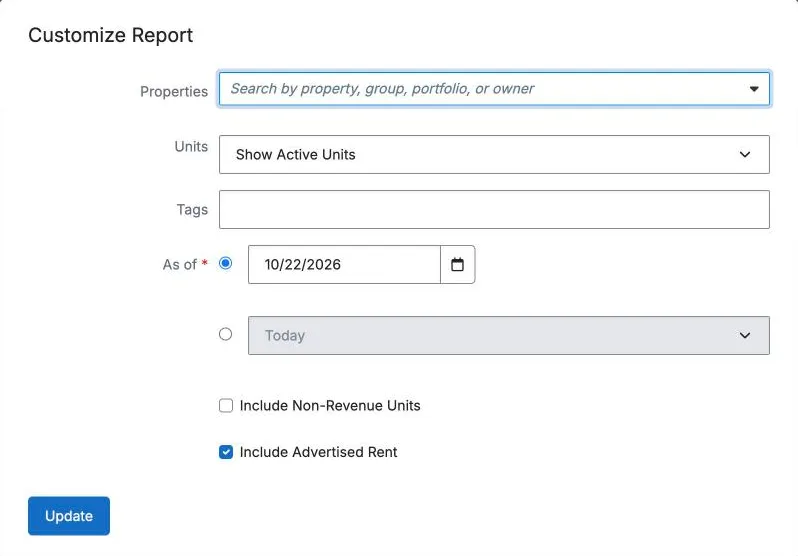
- Go to Reporting > Reports, search for the report by name, and open it. AppFolio opens the Customize Report window first.
- Set the filters shown for that report below, then click Update. When a date offers two choices, pick the second one: the relative option, like Until Today. A fixed date would repeat in every email.
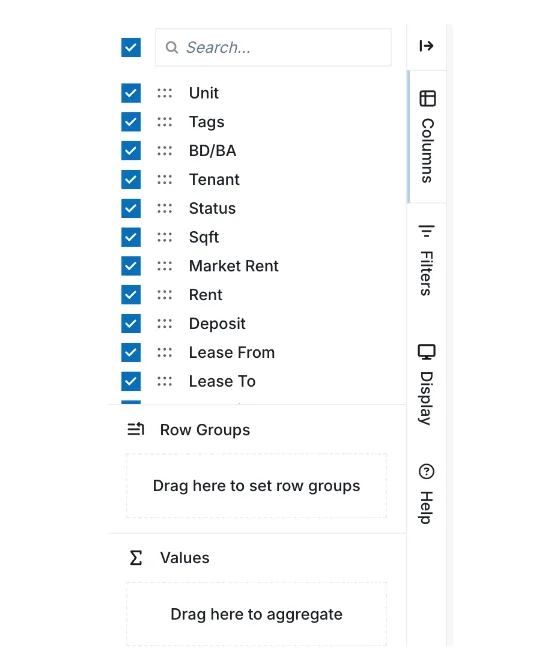
- In the panel on the right, open Columns and check the box at the top of the list so every column is on. Then uncheck the columns listed for that report below.
- Under Row Groups, remove any grouping (the Rent Roll starts grouped by Property) so each row is one record. A row group prints the grouped name on its own line, even for a column you unchecked.
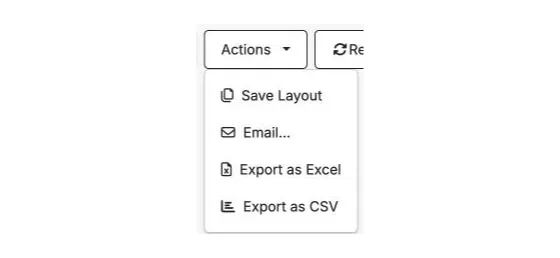
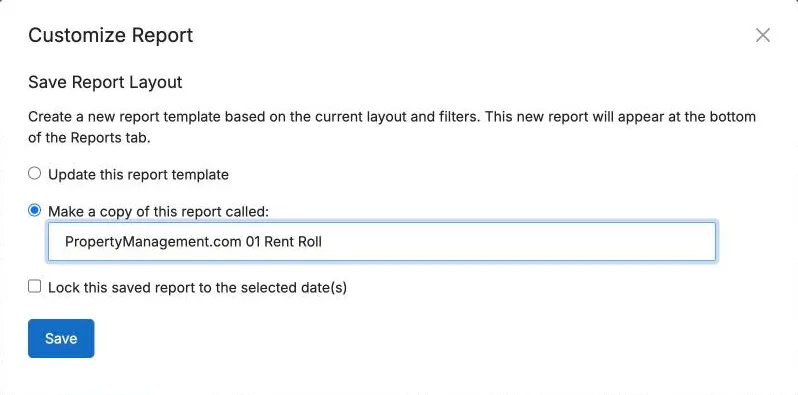
- Click Actions > Save Layout, choose Make a copy of this report called, and type the name from the list above, like PropertyManagement.com 01 Rent Roll.
- Leave Lock this saved report to the selected date(s) unchecked. Checking it freezes the dates, and every email would resend the same day.
- Click Save. The report now appears under Saved Reports on the Reports tab.
Report settings
Anything not listed stays at AppFolio's default. Bold marks a change you have to make. Uncheck names the columns to turn off after you've turned every column on.
1. Rent Roll
- Properties: Leave blank
- Units: Show Active Units
- Tags: Leave blank
- As of: Second option, Today
- Include Non-Revenue Units: Unchecked
- Include Advertised Rent: Checked
- Uncheck: Tenant, Additional Tenants, Tenant Tags, Affordable Program, Upcoming HUD Recertification Due Date, Upcoming LIHTC Recertification Due Date
Then remove Property from Row Groups.
In your MCP (for members): "Which leases end in the next 60 days, and what is each unit paying against market rent?"
2. Unit Directory
- Properties: Leave blank
- Units: Show Active Units
- Tags: Leave blank
- Uncheck: nothing. Every column here describes the unit.
No dates on this one. Remove Property from Row Groups.
In your MCP (for members): "Which vacant three-bedroom units aren't posted online yet?"
3. Unit Vacancy Detail
- Properties: Leave blank
- Units: Show Active Units
- Level of Detail: Detail View
- Bedrooms, Bathrooms: Any
- Available Date Range: First option, both dates left blank
- Amenities, Appliances: None selected
- Tags: Leave blank
- Include Non-Revenue Units: Unchecked
- Uncheck: nothing.
Summary View drops the per-unit rows, and any available date range hides units. Remove Property from Row Groups.
In your MCP (for members): "What are we asking for each vacant unit, and how does that compare with market rent?"
4. Property Directory
- Properties: Show All Properties
- Uncheck: Owner(s), Owner(s) - Phone Numbers, Portfolio, Distribution Payee, Vendor 1099 Payer, Property Owner License, Site Manager Name, Site Manager Phone Number, Property Created By, Maintenance Notes
A property that left your book still counts for the months you managed it. Its management end date is how we keep a handover from counting against your rent collection or renewals. Portfolio is on the list because portfolio names usually carry a property owner's name.
For your markets: the zip codes in this report show every area you actively manage. After your first reports email arrives, open Markets in your dashboard and click Update from sync to add any zip codes you're missing. Review the list before you save: it can include zip codes from properties you no longer manage.
In your MCP (for members): "How many doors do we manage in each zip code?"
5. Charge Detail
- Properties: Show All Properties
- Tenants: Leave blank
- Tenant Status: All
- GL Accounts: All
- Date Type: Charge Date
- Charge Status: All
- Charge Date Range: Second option, Trailing 12 Months
- Receipt Type: All
- Receipt Date Range: First option, both dates left blank
- Uncheck: Charged to, Owner(s), Owner(s) - Phone Number - Email, Created By
Tenant Status starts at Current and Notice only. That leaves out tenants who moved out or were evicted, and their charges are the ones most likely to go unpaid, so it has to be All. Trailing 12 Months always covers the three full months Rent Collection measures. Remove Property from Row Groups.
In your MCP (for members): "How much rent is still unpaid from last month, property by property?"
6. Income Register
- Properties: Show All Properties
- Receipt Date Range: Second option, Trailing 12 Months
- Payer: Leave blank
- Uncheck: Payer
About half the columns start unchecked here, so the select-all box matters. Your metrics barely use this report. It's here for the MCP connector, a member feature, which reads your payments from it.
In your MCP (for members): "How much did we collect last week, and from which properties?"
7. Work Order
- Properties: Show All Properties
- Tenants, Vendor: Leave blank
- Assigned User, Created By, Priority, From Inspection, Current Estimate Approval Status: All
- Current Work Order Status: All
- Work Order Type: Internal, Resident and Unit Turn, all checked
- Unit Turn Category: All
- Status Date: Created On
- Status Date Range: Second option, Until Today
- Uncheck: Primary Resident, Primary Resident Email, Primary Resident Phone Number, Requesting Resident, Resident Requested, Created By, Assigned User, Instructions, Status Notes, Service Request Description
Current Work Order Status starts with only the open statuses checked, which leaves out every finished job. Until Today keeps jobs opened and finished this month, which are your fastest ones. Job Description stays on: it describes the work, and it's what lets the MCP connector tell a plumbing job from a roof repair. Instructions, Status Notes and the service request text are where a resident's name or phone number usually ends up. Remove Property from Row Groups.
In your MCP (for members): "Which vendors handled our plumbing jobs this quarter, and how long did each job take?"
8. Lease History, by lease end date
- Properties: Leave blank
- Units: Show All Units
- Tenants: Show All Tenants
- Filter Leases By: Lease End Date
- Date Range: Second option, Rolling 12 Months
- Statuses: All
- Include Non-Revenue Units: Unchecked
- Uncheck: Tenant Name, Occupancy Name, Countersigned By, Inquiry Assigned User
Tenants starts at Show Active Tenants, which drops everyone who moved out, and those are your non-renewals. Rolling 12 Months runs through the current month, so leases ending this month are in. Remove Occupancy Name from Row Groups.
9. Lease History, by lease start date
Same settings and columns as report 8, with one change:
- Filter Leases By: Lease Start Date
Rolling 12 Months runs through the current month, so this month's new leases are in too.
10. Lease History, upcoming starts
Same settings and columns as report 9, with one change:
- Date Range: Second option, This Month and Next 6 Months
This catches leases you signed recently that haven't started yet. The quickest way: with report 9 open, change the date range, then Save Layout and choose Make a copy. Don't choose Update this report template, which would overwrite report 9.
In your MCP (for members), reports 8 to 10: "How many new leases did we sign last quarter, and at what rents?"
11. Renewal Summary
- Properties: Leave blank
- Units: Show All Units
- Lease Range: Second option, Rolling 12 Months
- Statuses: All
- Include Tenant Transfers: Checked
- Include Non-Revenue Units: Unchecked
- Uncheck: Tenant Name, Tenant Tags
Lease Range filters on the new lease's start date, so a lease that ended September 30 and renewed October 1 needs October in range. Rolling 12 Months runs through the current month. A tenant who moved to another of your units was kept, which is why transfers count. Remove Lease Start Month from Row Groups.
In your MCP (for members): "Which renewals went out with the biggest rent increases, and which ones signed?"
12. Tenant Tickler
- Properties: Show All Properties
- Occurred Range: Second option, Until Today
- Events: All
- Uncheck: Tenant, Tenant Phone Number, Tenant Email, Tenant Tags, Assigned User
This is where move-out reasons come from. A move-out you didn't cause, like a property owner selling or moving in, comes out of your renewal math when AppFolio's Move Out Reason says so.
Step 2: Put all 12 in one weekly email
Once all 12 reports are saved, one schedule sends them together. First, get the address it goes to.
- In your PropertyManagement.com dashboard, open Settings. Under Scheduled email reports, click Set up scheduled email reports, then copy the address under Send reports to. If you don't see the button, ask an account owner or admin to create the address.
- In AppFolio, go to Reporting > Scheduled Reports and click New Scheduled Report.
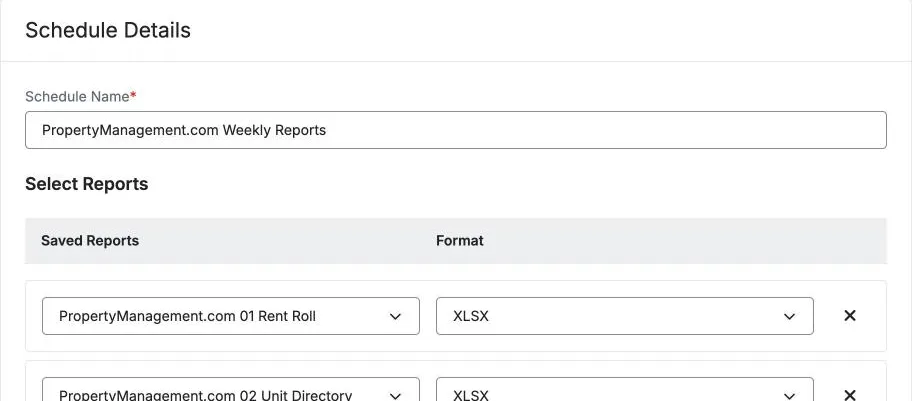
- Schedule Name: PropertyManagement.com Weekly Reports.
- Under Select Reports, pick PropertyManagement.com 01 Rent Roll and set Format to XLSX. Click Add Another Report and repeat until all 12 are listed, each as XLSX.
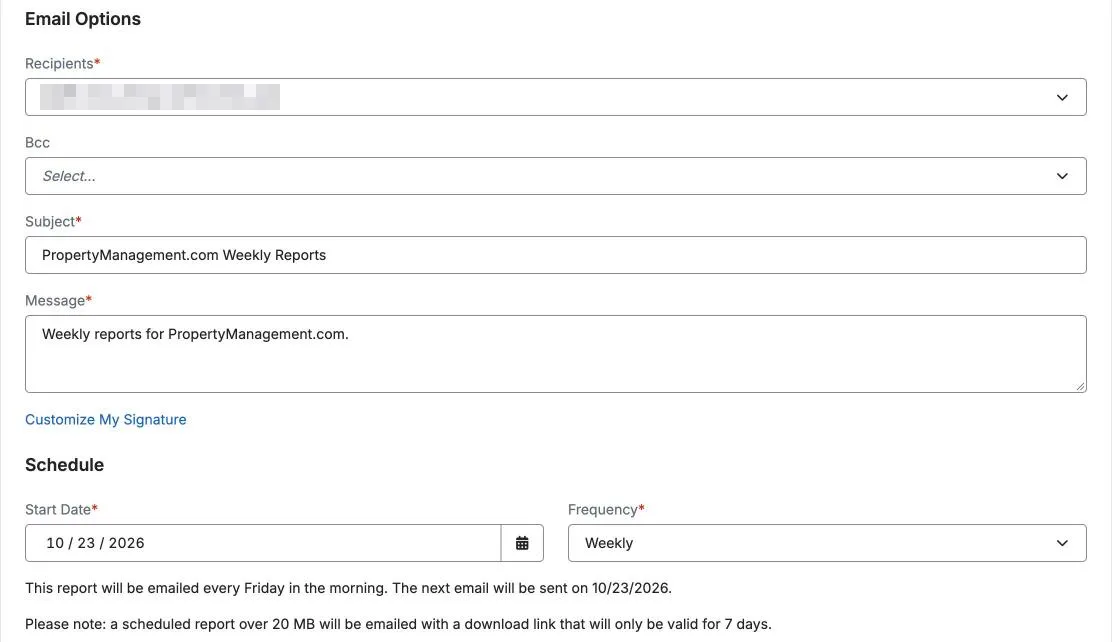
- Recipients: paste your reports address and press Enter.
- Subject: PropertyManagement.com Weekly Reports. Your address already tells us whose reports they are, so any subject works. Message: anything you like, such as Weekly reports for PropertyManagement.com. AppFolio requires both.
- Start Date: tomorrow. Frequency: Weekly. The first email arrives tomorrow morning, then every week on that weekday. AppFolio confirms the date right below these fields.
- Click Save.
To change anything later, open the schedule from Reporting > Scheduled Reports. It opens ready to edit, and Delete is in the top right.
Optional: your property owner survey list
Only if you run property owner surveys through PropertyManagement.com. This is the one report that carries contact details, so it goes in a schedule of its own and your weekly reports never include it.
13. Owner Directory
- Properties: Show Active Properties
- Owners: Show Active Owners
- Tags: Leave blank
- Created By: All
- Columns: Only these seven: Name, First Name, Last Name, Email, Phone Numbers, Properties Owned, Tags
This report works the other way around. Uncheck the box at the top of the Columns list, which clears them all, then check the seven above. Your property owners' payment details, mailing addresses and notes never leave AppFolio.
Save it as PropertyManagement.com 13 Owner Directory. Then create a second schedule the same way as Step 2, to the same reports address, with three differences: name it PropertyManagement.com Owner Survey List, add only this report as XLSX, and use the subject PropertyManagement.com Owner Survey List. Surveys only go out once you've turned them on.
Common questions
When does AppFolio send the first reports email?
The morning of your start date, so tomorrow morning if you followed Step 2. After that, the same weekday every week. You can watch each file arrive under Recent files in Settings. This is the email of reports AppFolio sends to PropertyManagement.com. It doesn't email your tenants or property owners, and it doesn't start your property owner surveys, which only go out once you turn them on.
I added properties or units. Do I change anything?
No. Every report pulls your whole book each time it runs.
What if the reports email stops?
Your verified metrics, and the MCP connector for members, come from this email, so keep the schedule running. Recent files in Settings shows the last spreadsheets we received, so a gap is easy to spot. To change or pause the schedule, open it from Reporting > Scheduled Reports. If you connect the AppFolio API later, delete the schedule once your sync is live.
A file says Unrecognized report headers. What do I do?
That file's columns didn't match the report we expected. Email support@propertymanagement.com and we'll tell you which setting to change. Your other reports keep syncing in the meantime.
Do my tenants' or property owners' contact details reach you?
Not from the 12 weekly reports. Each report's Uncheck list covers every column with a tenant's or property owner's name or contact details, and a column you uncheck never leaves AppFolio. Property owner contact details come only from report 13, and only if you send it for surveys.
Do you sell my data?
Our Privacy Policy puts it plainly: "We never sell or share your identifiable company data." We also never use it to train third-party AI models. For every company with an account, both are contract terms in Section 8 of our Terms of Service.
Can other property managers see my reports?
No. We never share your reports, or the rents, leases and work orders in them, with another property manager. From your reports, your public profile shows only your verified results and the markets you add, and you can turn any verified metric off in your dashboard.
Will you contact my property owners?
We contact the property owners on your survey list only to run the surveys you turn on. Our Privacy Policy (§6.7) says: "We do not market to these individuals or use their information to send business to other property managers."
Why do you ask for more columns than the metrics use?
The metrics need a handful of columns from each report. The rest does two more jobs. Your property addresses keep your markets current, so you show up for property owners searching in every zip code you actively manage. Rents, lease terms, vendors and work order details are what let the MCP connector, a member feature, answer questions about your book in Claude or ChatGPT. Uncheck only the columns on each report's list. Turning off anything else can break a metric or leave gaps in your markets and your MCP answers.
Why do you need property addresses?
They're required: a send without property details won't sync. Your addresses show us every zip code you actively manage, and that's what keeps your markets current. Open Markets in your dashboard and click Update from sync to add any zip code you're missing, so property owners searching there find you on our city pages and in their TrueMatch results. Addresses also keep each property's records together from week to week, even after you rename a property, and they let the MCP connector answer questions property by property.
I already send these reports with every column on. Should I change them?
Yes, but email support@propertymanagement.com before you do. Changing your columns gives your records new keys on our side, and we'll switch your account over so nothing counts twice.