When a property owner finds you on PropertyManagement.com, your profile is the first thing they read, and AI tools read it too. A complete one leads with your logo and your own description, so you look as credible as the biggest firm in your market.
Why a complete profile matters
Property owners search PropertyManagement.com for a manager every day. Your profile answers their first questions before they reach out: who you are, where you manage, how many doors you run and how long you've been at it.
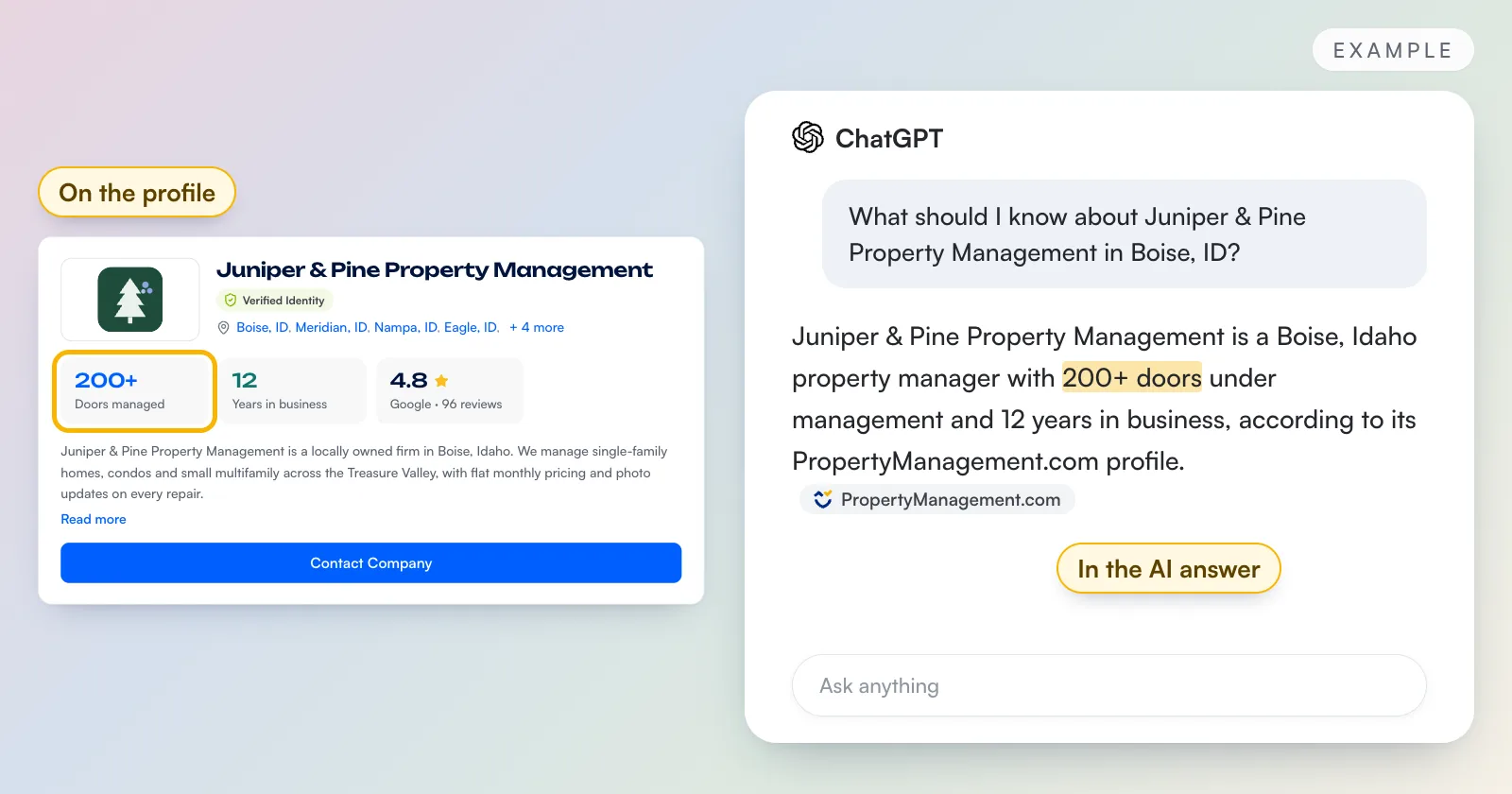
ChatGPT already quotes PropertyManagement.com profiles, right down to a company's door count. No one controls what an AI tool writes, but a complete profile gives it your words. Leave the description blank and AI tools see a generic line built from your door count and years in business instead.
What a complete profile shows
A fully built profile has seven sections:
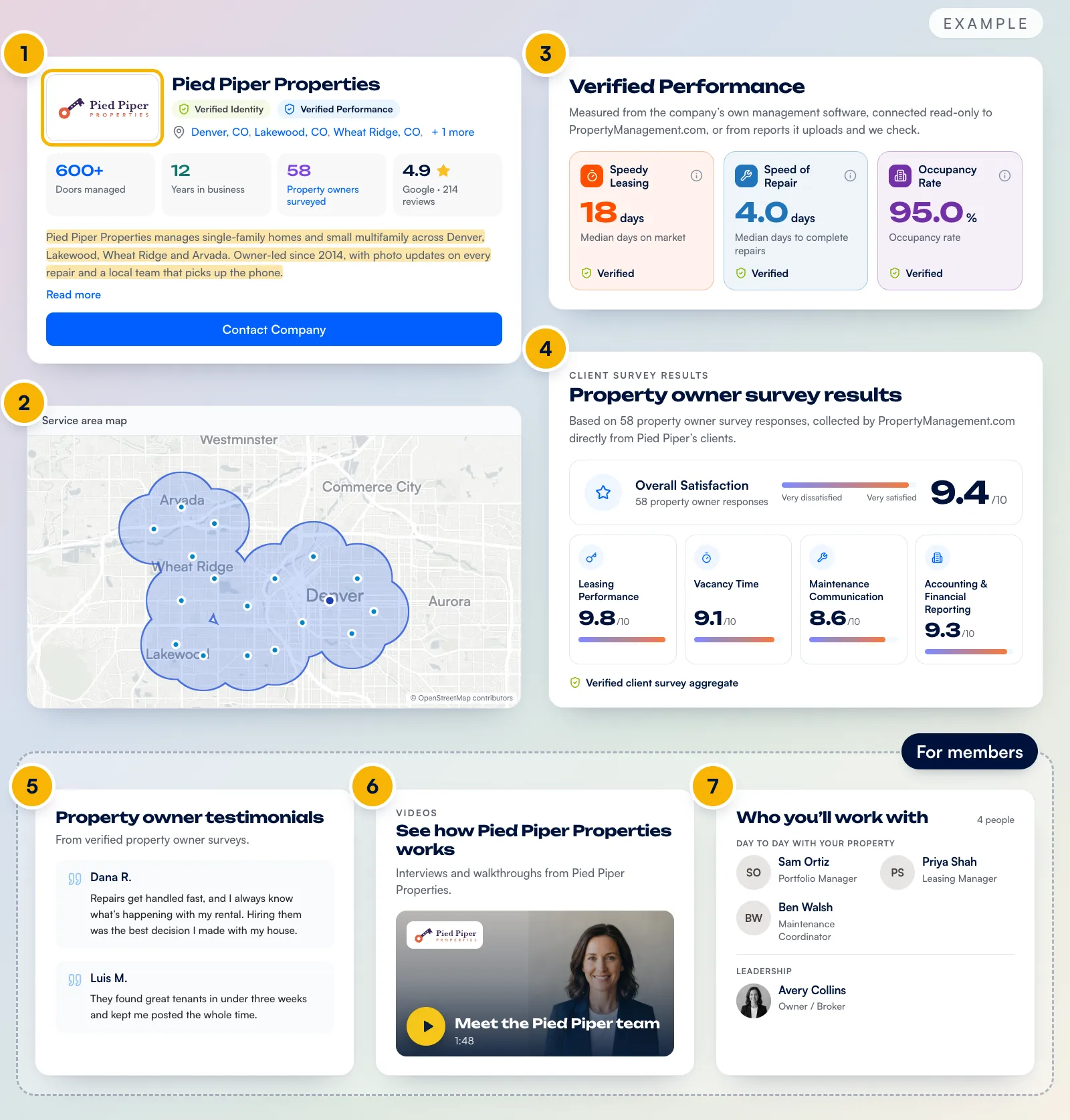
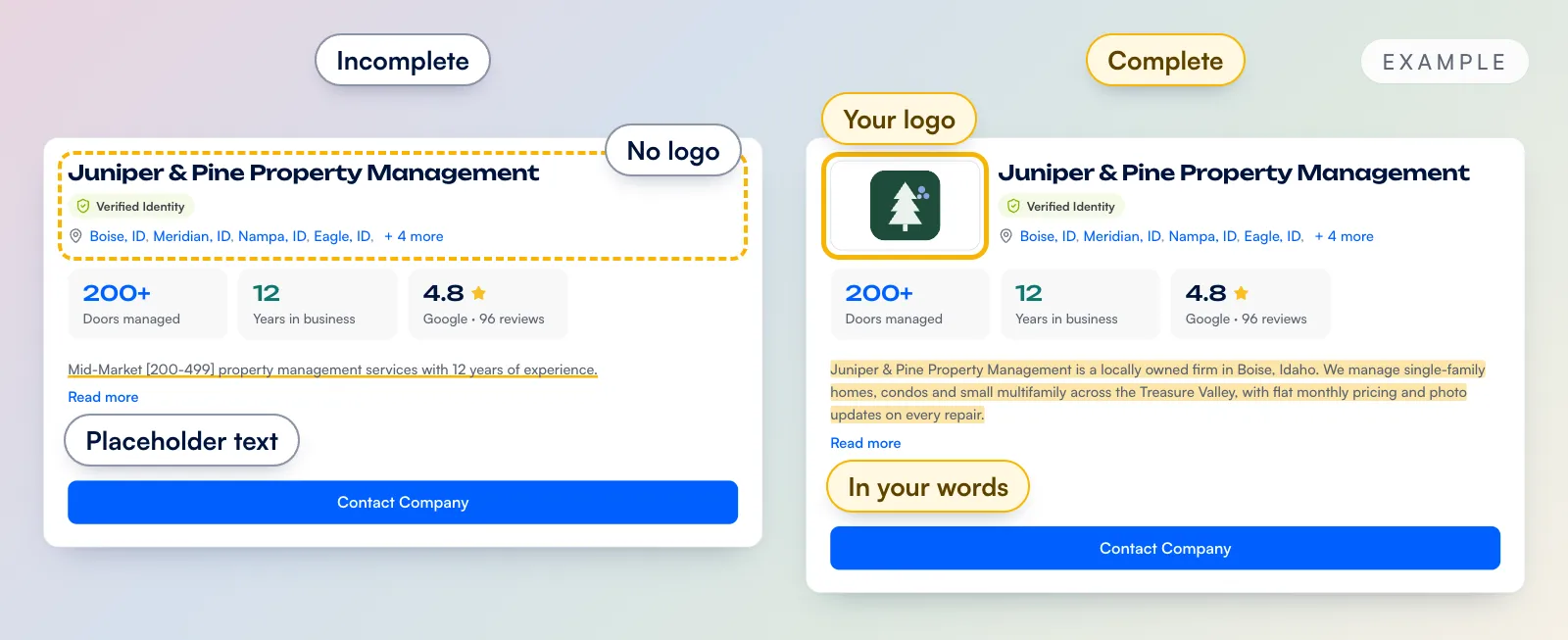
- Logo and description. The first thing a property owner sees. Left blank, the profile shows no logo and a placeholder sentence.
- Service area map. Where you manage, so a property owner knows you cover their rental. Until a software sync or rent roll confirms it, the map is marked "Self-reported."
- Verified Performance. Proof of how fast you lease and fix things, measured from your own software. These come from connecting your tools.
- Property owner survey results. What your own clients say about you, collected by PropertyManagement.com once you turn on surveys.
- Testimonials. Your clients' words, from those surveys. For members.
- Videos. A look at how you work, from team introductions to property tours. For members.
- Team. The people a property owner will work with. For members.
Completing your profile is step one, and it covers sections 1 and 2. Your dashboard's next steps, connecting your tools and turning on surveys, fill in 3 and 4. A free profile shows one verified result and one survey category, and members' profiles show them all.
How to complete your profile
Edit Profile at a glance
Open Company Profile in your dashboard's sidebar and click Edit Profile. Two tabs make up a complete profile:
- Details: your logo, company name, website, phone, email, business address, city, state and description.
- Metrics: 41 answers in seven sections. A meter climbs from Started to Standout as you go.
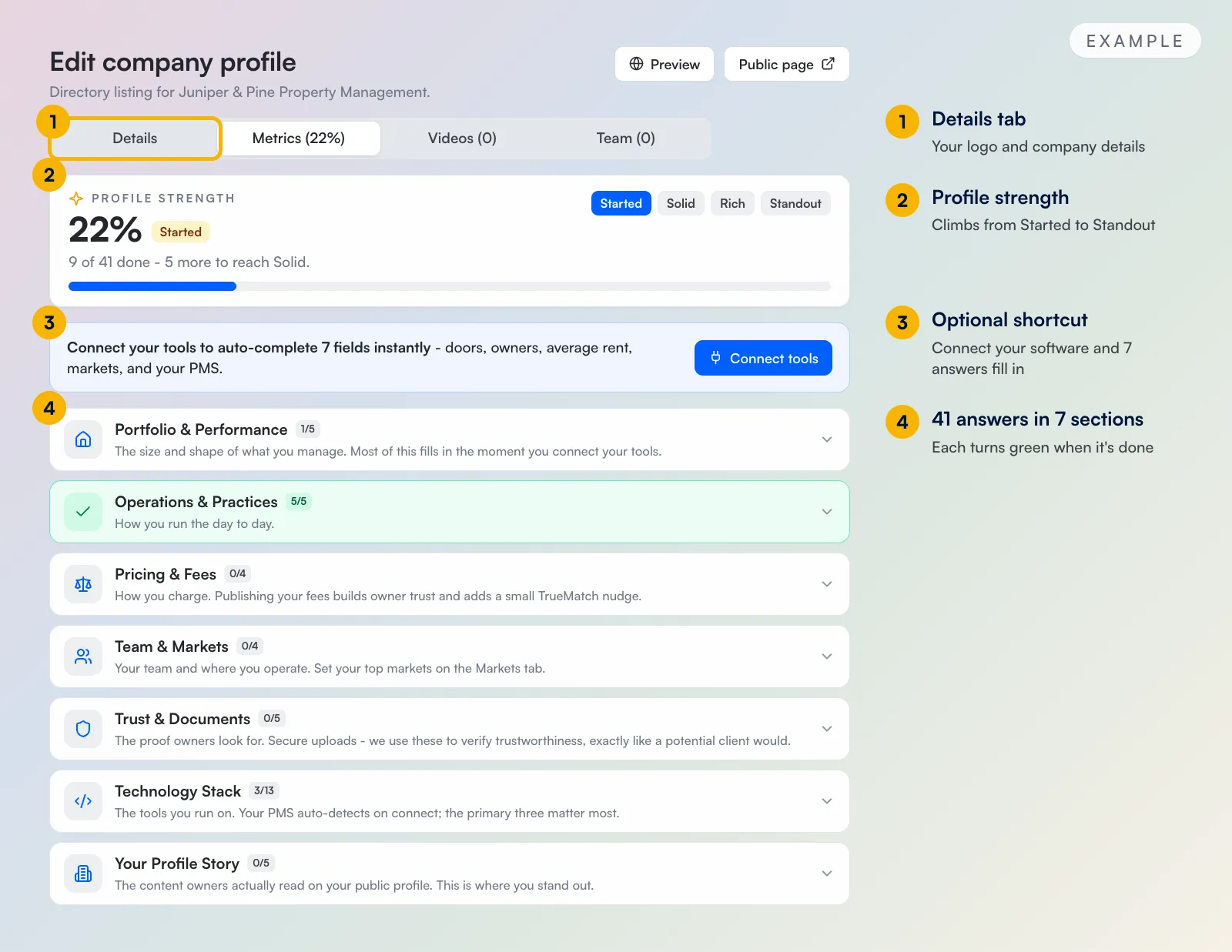
For a fast start, connect your property management software from the Metrics tab. Seven answers fill in and stay current, from your door count to your markets. The connection is read-only, and typing the answers works too.
Save as you go. Your profile is complete when all seven sections turn green and the Details fields above are filled in. The meter reads Standout at 36 answers, so look for any open section.
What to have ready
The answers left blank most often take some digging. Have these ready:
- A description: 3 to 4 sentences on who you are and what you offer. Write it once on the Details tab and it counts on the Metrics tab too.
- Your logo: square, at least 100 by 100 pixels.
- Your fees, in whatever format you use.
- For Trust & Documents: your real estate or broker's license, your property management agreement, your lease agreement and your Google Business Profile link. A blank template is fine for both agreements.
What stays private
- Everyone can see: your logo and description, city and state, service area, doors managed, years in business, property types and asset class focus.
- Property owners who reach out through your profile also get: your street address, plus your phone number on members' profiles.
- Never on your profile: your fees, your license and agreement uploads, your team size, your email address, your tech stack, and your strengths and growth areas.
Messages from your profile's Contact Company button go to the email on your Details tab. Members' profiles also show your website.
Common questions
Is completing my profile free?
Yes. Everything a complete profile needs is free on every plan. Videos, a team section, FAQs and a booking link are Membership features.
Why do you need my license and agreements?
To verify your company, the way a careful property owner would. They're secure uploads, and they never appear on your profile.
Does a complete profile count toward the Top 100?
Yes. It's one of the two steps to get in the running, along with your property owner surveys. There's no application and no fee, and scores lock every November 30. How we rank the Top 100 has every rule.