Your property management software already holds the record of how your business runs: every property, lease, work order and payment. Once it syncs to PropertyManagement.com, you can hand that record to Claude and ask about it in plain English. "Which leases end in the next 90 days?" "What did owners say in this quarter's surveys?" Claude pulls the answer straight from your synced data.
The connection runs through the PropertyManagement.com MCP, a read-only server that Claude adds as a custom connector. Setup takes about five minutes, and there's no access key to copy around. You sign in with your PropertyManagement.com login.
What you get that a spreadsheet upload can't give you
You could export a report from your software and drop it into a chat. People do. You'd get answers about that one file, on that one day, with none of the context below. Connect PropertyManagement.com and Claude works from four things only we have.
Your owners' voice, already collected
Your TrueMatch owner survey responses come with the connection: NPS, category scores for leasing, maintenance, accounting and communication, and every written comment. Ask Claude what owners keep praising, which ones are unhappy, or which quotes would make your best testimonials. No other system you use holds this, because owners told it to us.
A yardstick from verified property managers
Is a 7-day repair time good? On its own, nobody can say. Claude can line your numbers up against medians from verified property managers on PropertyManagement.com: repair speed, days from listing to signed lease, lease renewal rate, rent collection rate and occupancy rate, plus owner survey benchmarks built from 2,300+ responses (as of September 2026). The benchmarks are aggregate and de-identified, so you see where you stand without anyone's name attached.
Charts and dashboards right in the chat
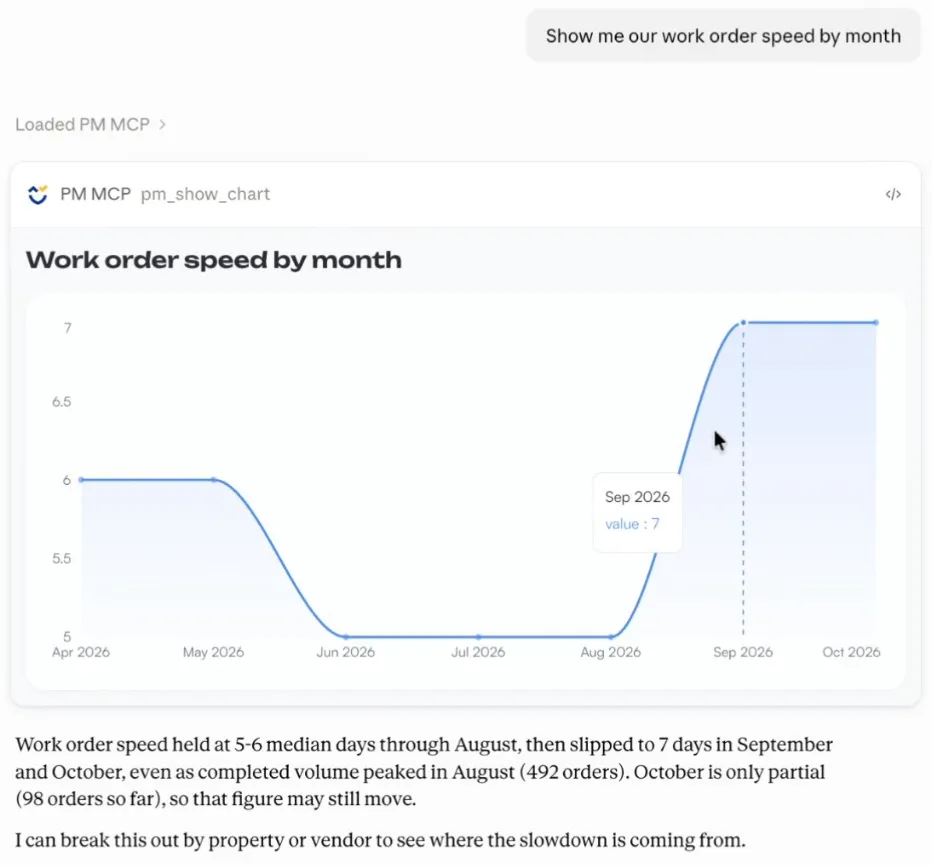
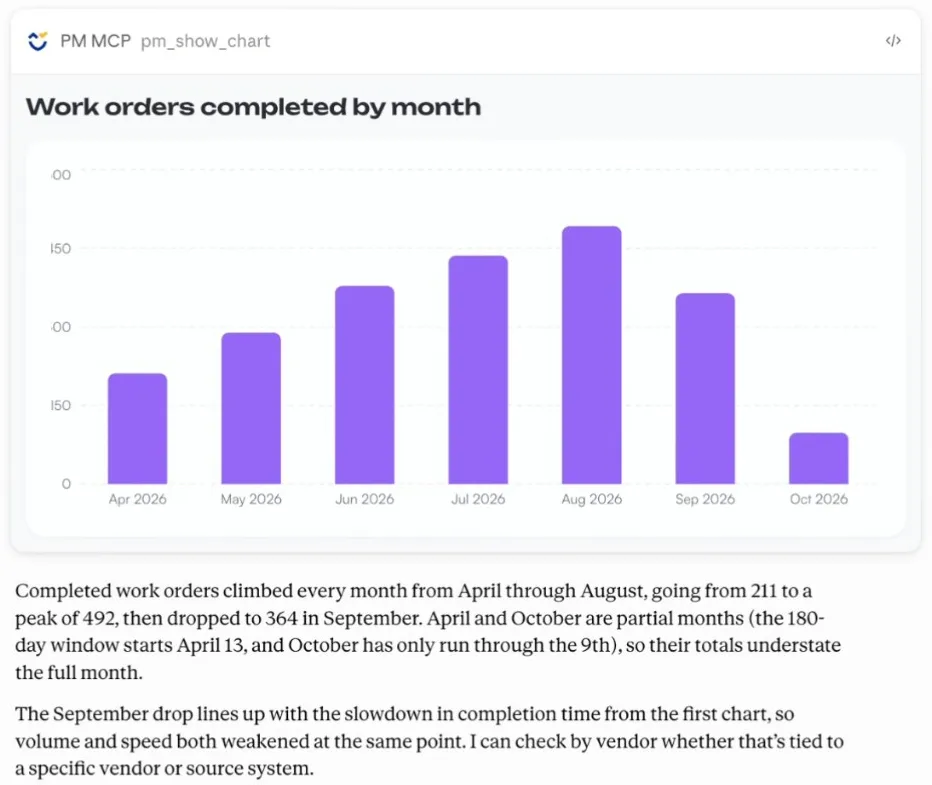
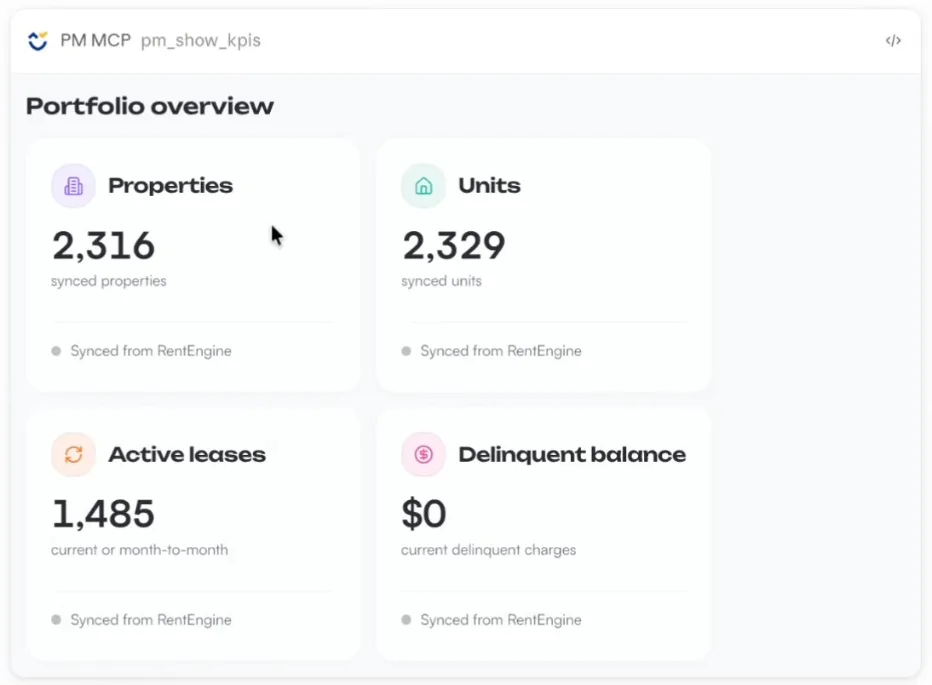
Ask for a chart and you get one, drawn from your live synced data in PropertyManagement.com's own chart style. There's nothing to export and no spreadsheet to build. Line charts, bar charts and KPI cards all render in the conversation, and Claude writes up what changed underneath.
Data that's already cleaned up
Your software's raw exports don't line up with each other: AppFolio, Rentvine, Buildium and RentEngine each name things their own way. The sync puts properties, units, leases and work orders into one shape, so Claude can answer across every system you've connected without you mapping columns first.
What you'll need
- A PropertyManagement.com Client Dashboard login on an organization with MCP access. If you don't see MCP access in your sidebar, your organization isn't in the Alpha yet. Email support@propertymanagement.com and we'll add you.
- At least one connected property management system. The MCP reads what your software syncs to us, so nothing shows up until a sync has run. Set that up in Connect Tools.
- A Claude account. Custom connectors work on every Claude plan, including Free, which allows one custom connector. On Team and Enterprise plans, an owner adds the connector for the whole organization, then each person clicks Connect and signs in for themselves.
Step 1: Copy your organization MCP URL
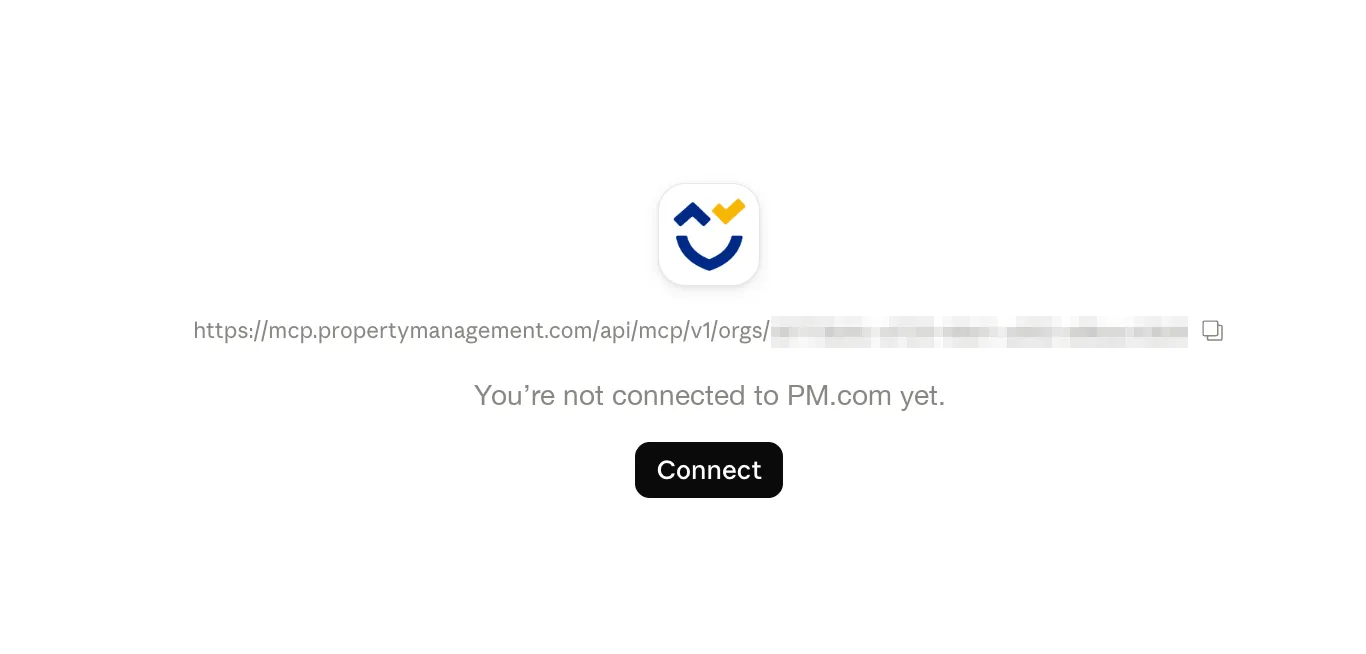
In your PropertyManagement.com Client Dashboard, open MCP access in the sidebar, under Performance. At the top of the page, copy your Organization MCP URL with the copy button on the right.
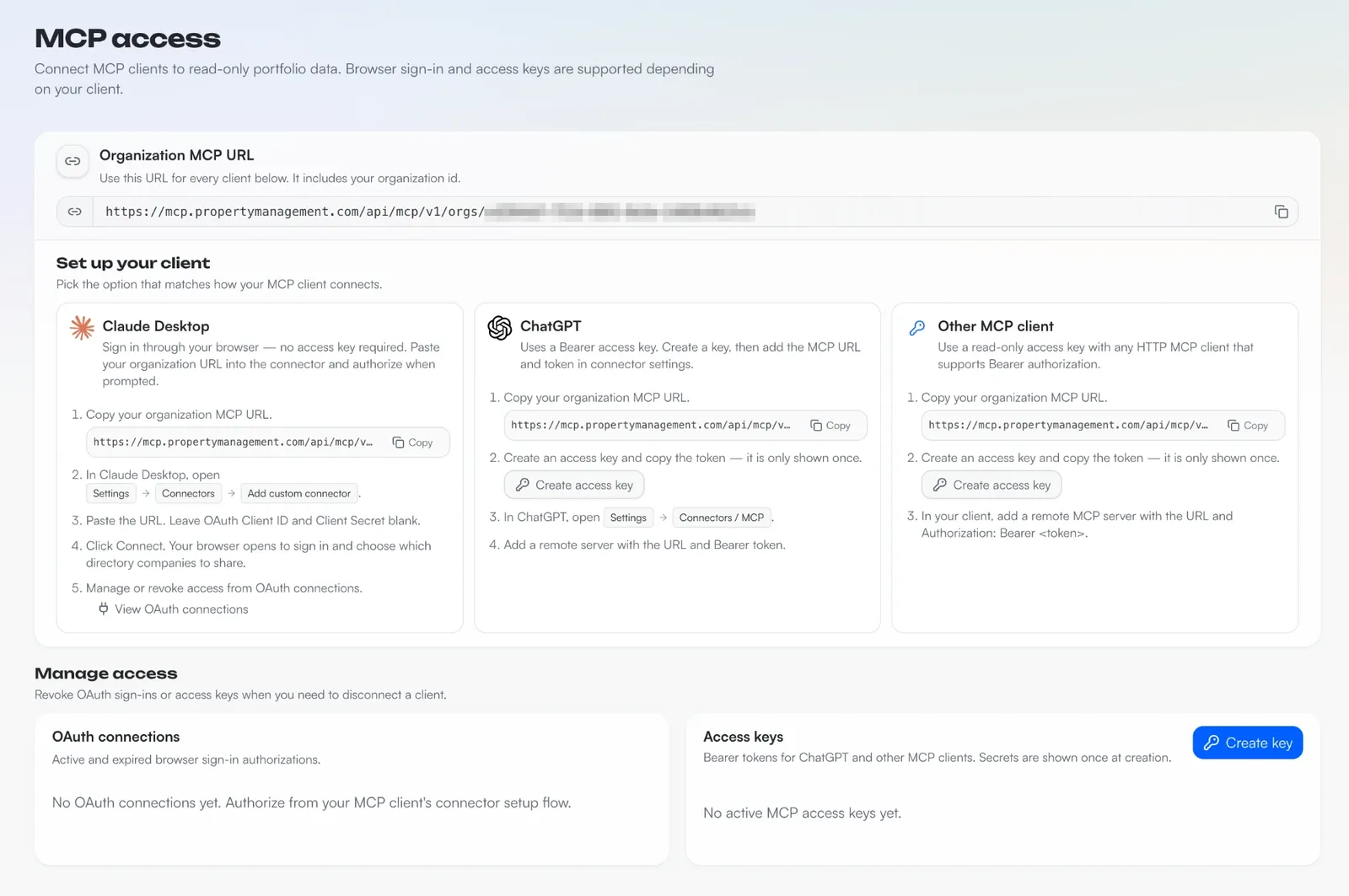
The URL ends with your organization's id, so it's unique to your company. Use it for every Claude account on your team. You can skip the Create access key buttons; Claude signs in through your browser instead.
Step 2: Open Connectors in Claude
In Claude, on the web or in the desktop app, open Customize and click Connectors.
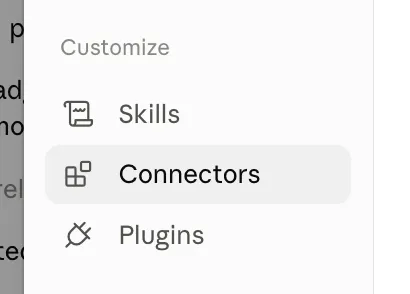
Step 3: Add a custom connector
Click + Add in the top-right corner, then click Add custom connector.

Step 4: Name it and paste your URL
Type a name you'll recognize in the connectors list, like PM.com. Paste your Organization MCP URL into the second field, then click Continue.
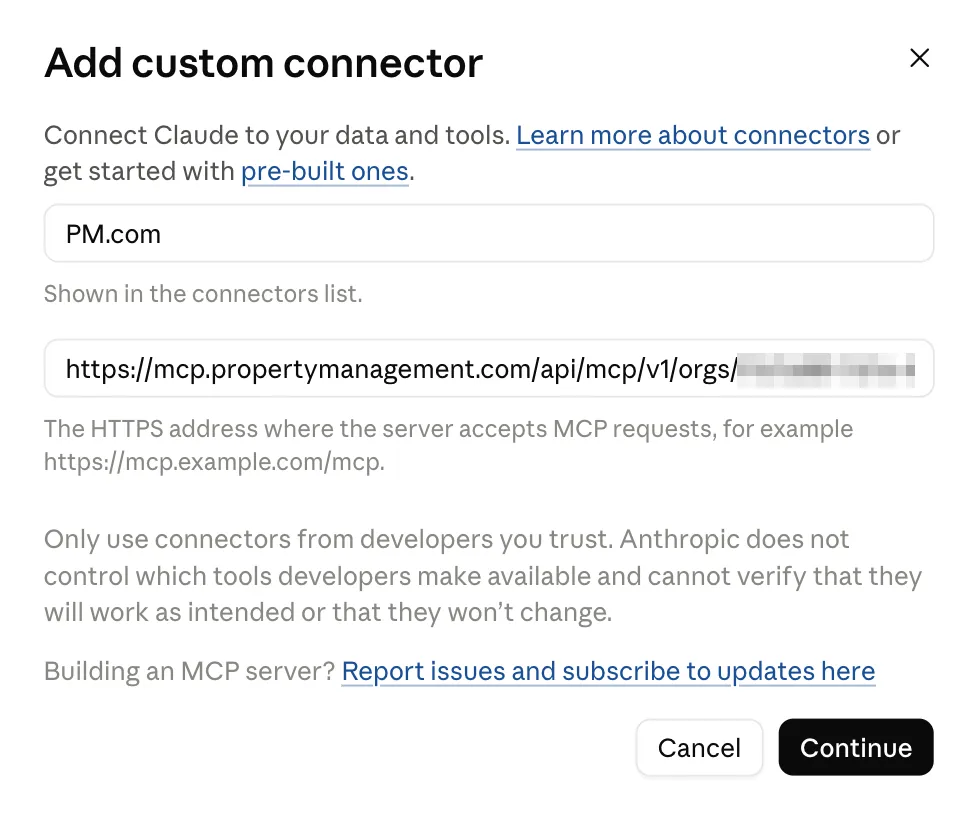
Step 5: Let Claude check the server
Claude runs three quick checks against the server. A 401 on the first one is normal: it means the server is asking you to sign in. When you see Server found, click Continue.
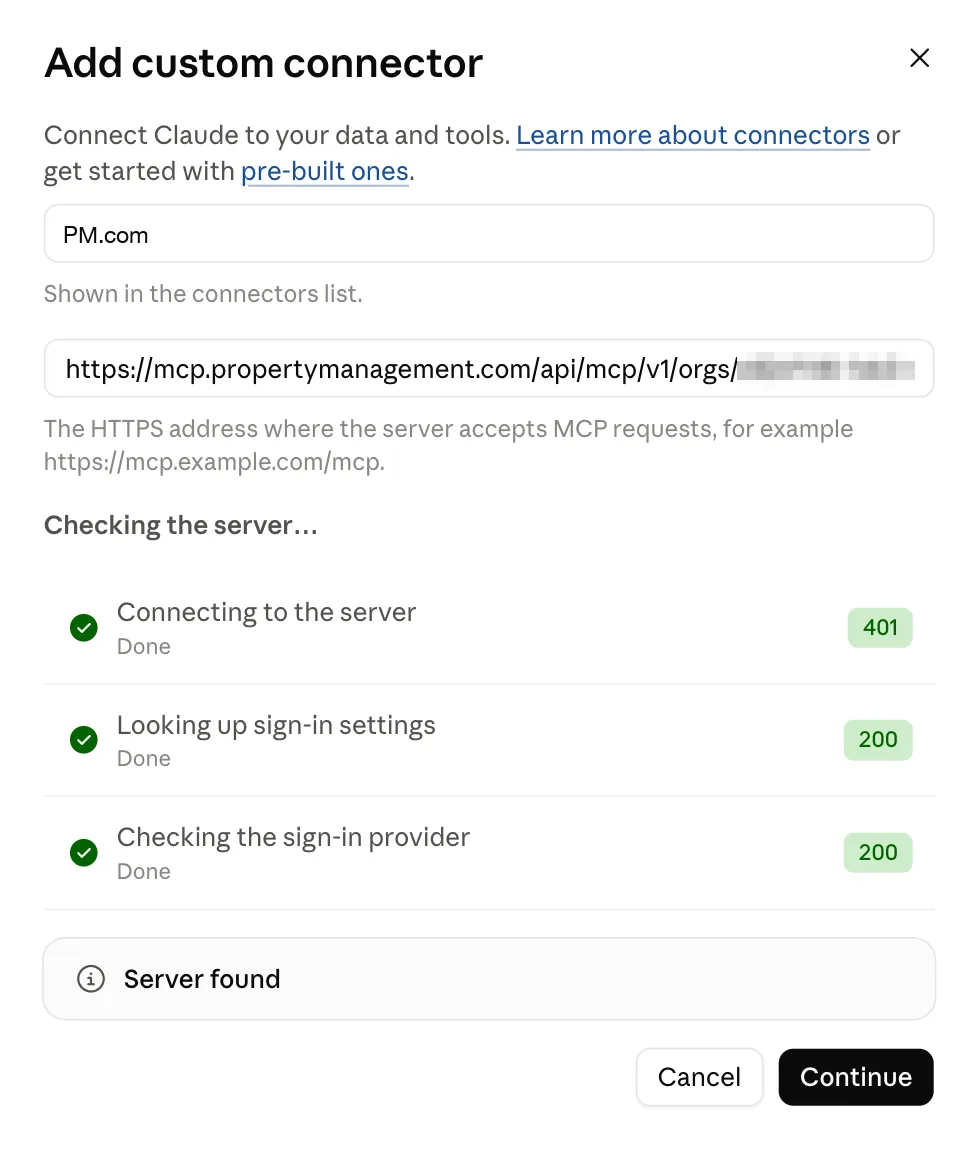
Step 6: Keep the detected sign-in settings and click Add
Claude detects how the server signs people in, so there's nothing to change. Leave Sign in now and Register automatically selected, skip Request headers, and click Add.
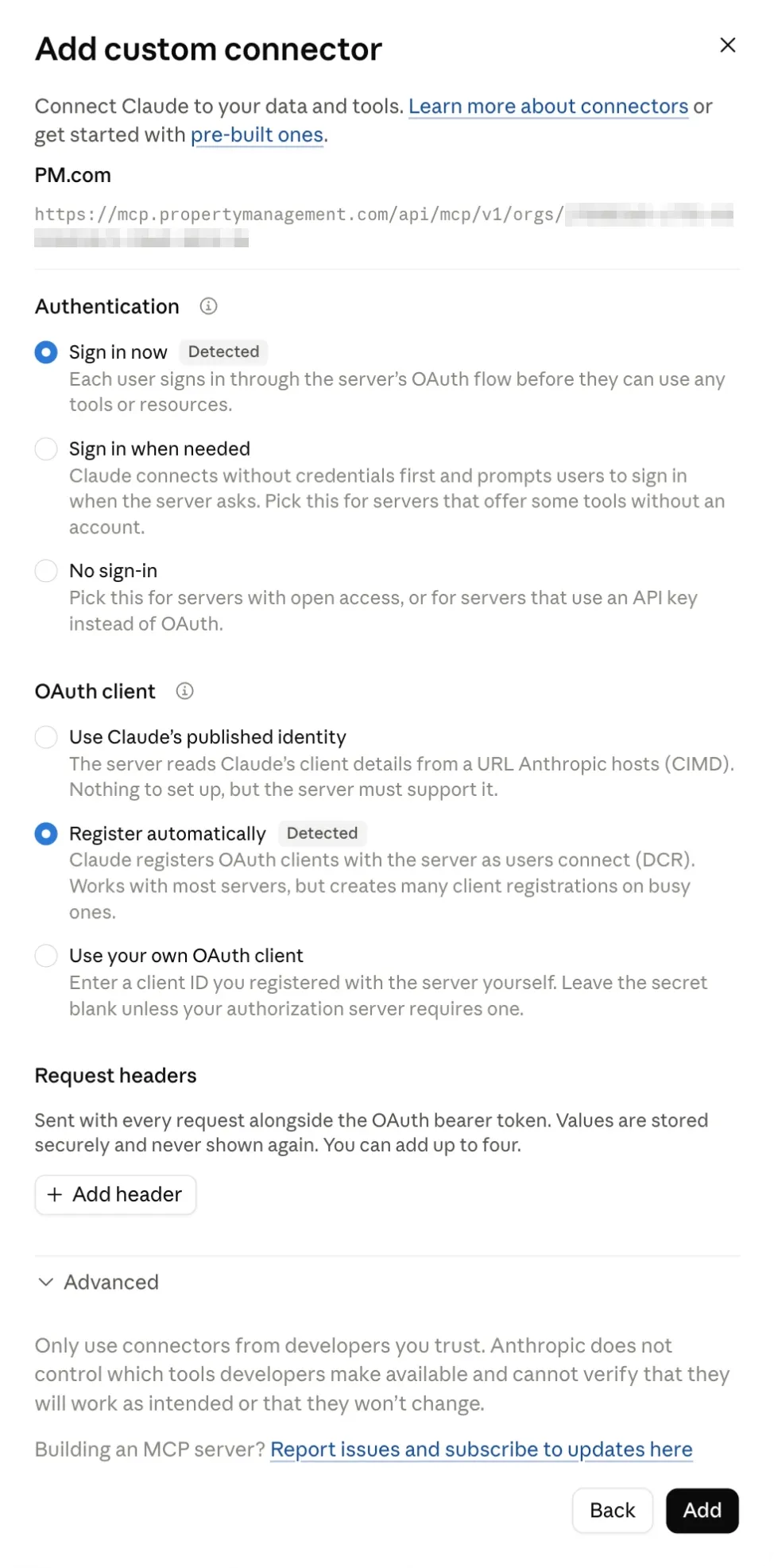
Step 7: Connect and sign in
Open your new connector and click Connect.
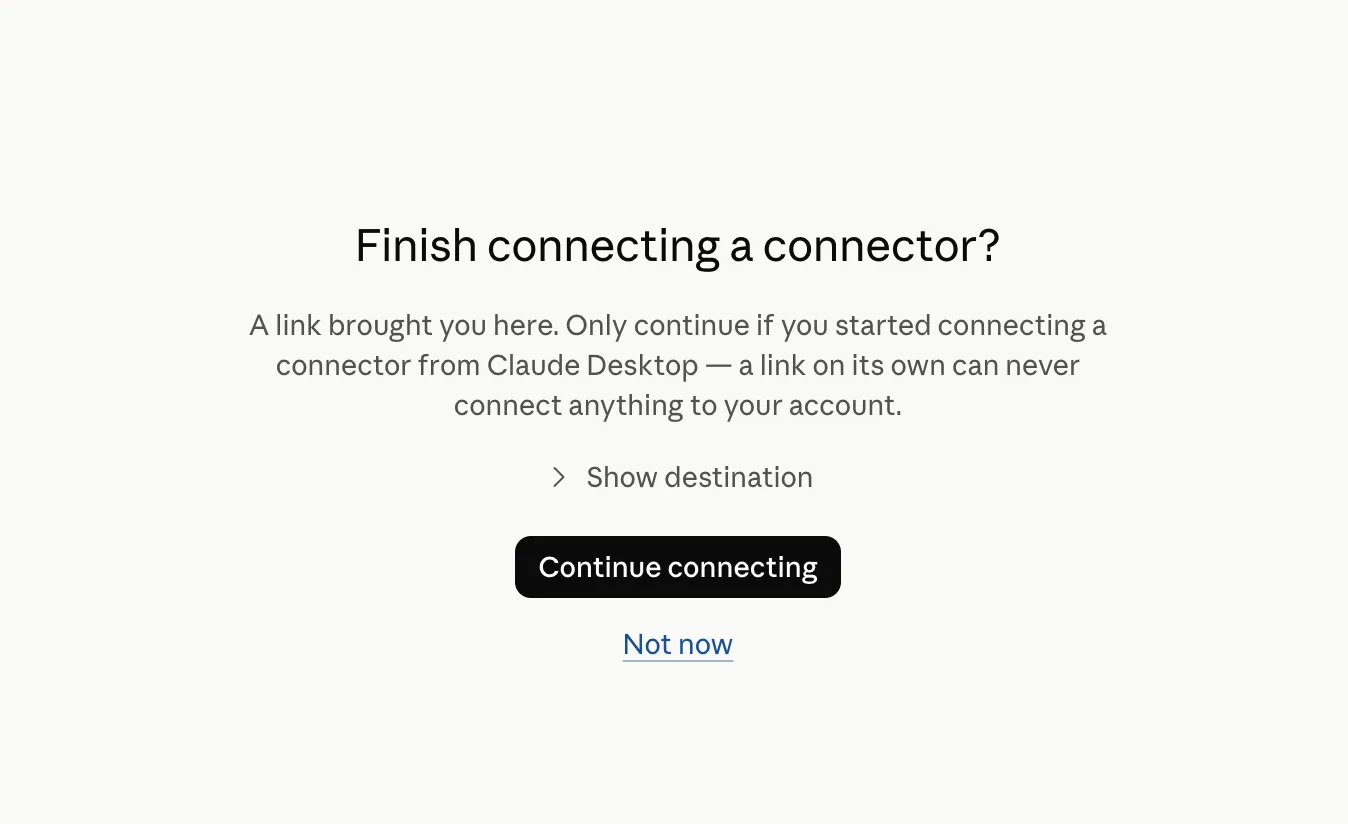
Claude opens a browser window to sign in. If you're using the desktop app, you may see a Finish connecting a connector? page first. You started this from Claude, so click Continue connecting.
Sign in with your PropertyManagement.com login if you aren't already.
Step 8: Choose your companies and authorize
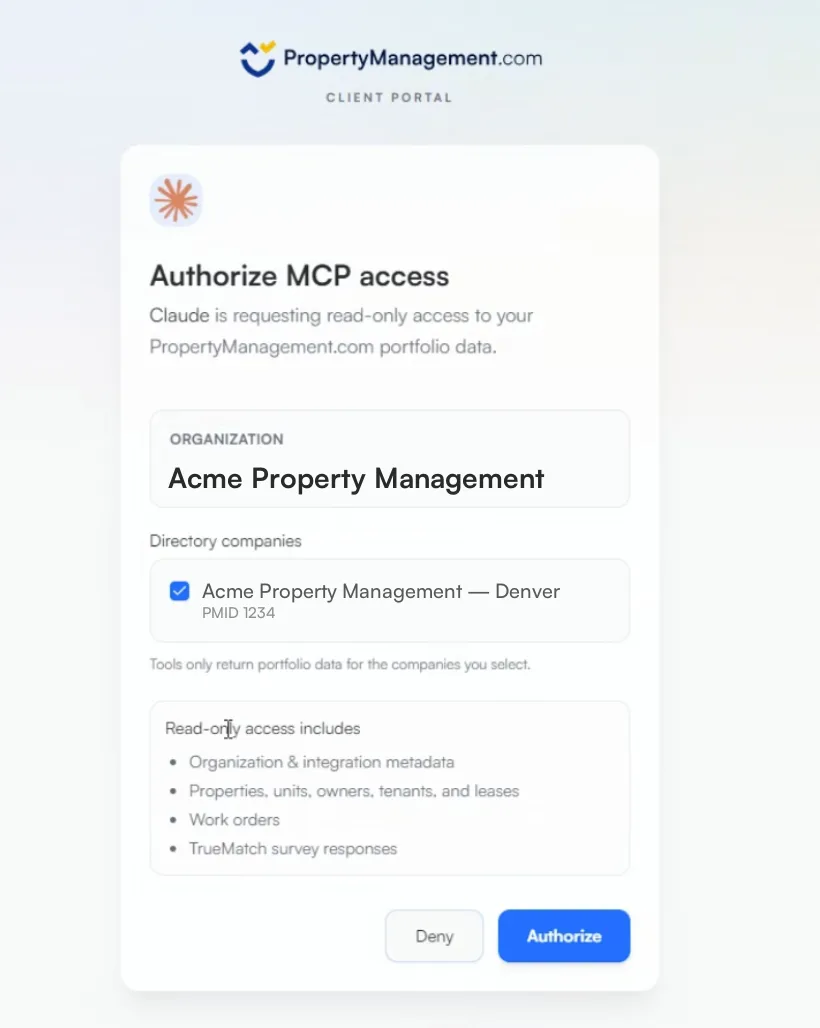
The Authorize MCP access page shows your organization and its directory companies. Tick each company whose data Claude should see. The tools only return data for the companies you tick, and you can change that later. Click Authorize.
You land back in Claude with the connector connected.
Step 9: Set the tools to Always allow
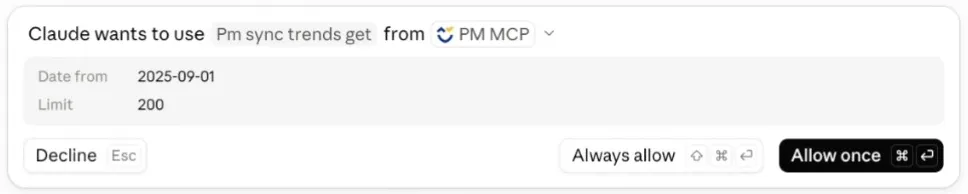
By default, Claude asks before it uses each tool, so a single question can stop for approval three or four times. Every PropertyManagement.com tool is read-only, so you can turn those prompts off. In Customize, then Connectors, open the PM.com connector. Under Tool permissions, open the menu next to the tool group and choose Always allow.
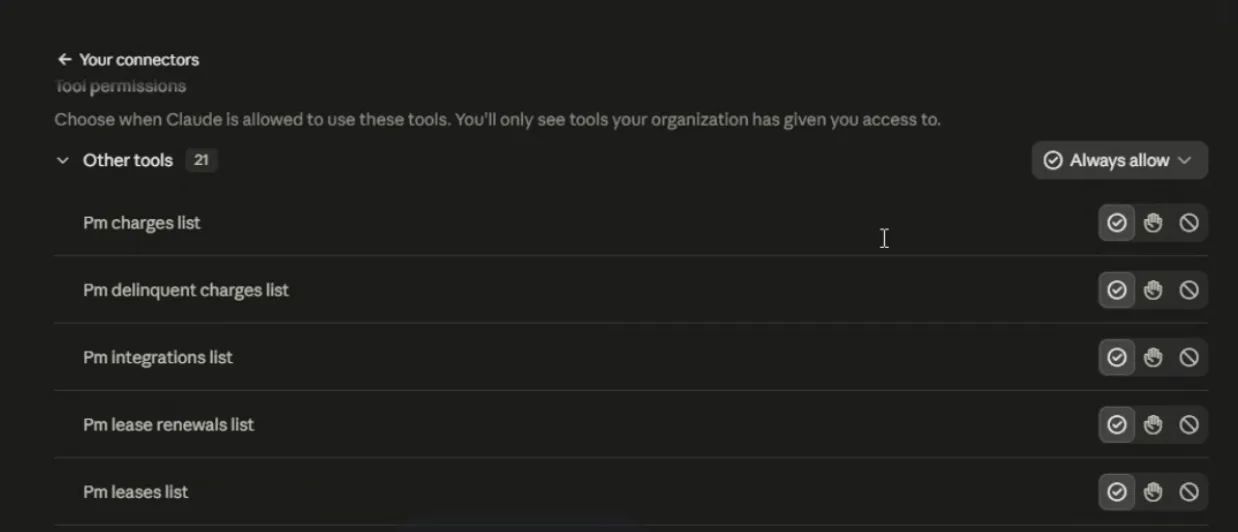
Skipped this step? Claude asks the first time it uses each tool. Click Always allow on that prompt and it won't ask again for that tool.
Try it
Start a new chat and ask about your portfolio. These prompts are a good first lap.
Charts in one ask
- "Show me our work order speed by month."
- "Chart work order speed by property for the last 90 days."
- "Graph how many work orders we completed each month."
- "Chart our delinquent balance by property."
- "Which months have the most lease expirations coming up? Graph it."
Dashboards
- "Give me a portfolio dashboard."
- "Show me our Speedy Repair KPIs."
- "Give me my Monday portfolio briefing."
Owner surveys and benchmarks
- "Summarize what owners said in our TrueMatch surveys and pull our three best testimonials."
- "Which owners gave us a low score, and what did they say?"
- "How does our repair speed compare to verified property managers on PropertyManagement.com?"
Quick answers
- "What's our median time to complete a work order?"
- "How many active leases do we have?"
Build your own view
- "Build me a custom view: a KPI card for total properties next to a bar chart of work order speed by month."
If Claude doesn't reach for your data, start the message with "Using PM.com," or check that the connector is switched on for the chat under the + button, then Connectors.
What Claude can see
The MCP reads the data your software syncs to PropertyManagement.com, plus your TrueMatch owner surveys. It never calls your property management software directly, and it never sees your software's passwords or keys.
- Your account: your organization, the companies you shared, and which software is connected.
- Portfolio: properties, units, owners, tenants, leases, lease renewals and listings.
- Maintenance: work orders, plus median days to complete, grouped by month, property or vendor.
- Money: charges, payments and delinquent balances, where your software syncs them.
- Sync health: when each system last synced, row counts, trends and what changed between syncs.
- Owner surveys: your TrueMatch survey scores, individual responses and testimonials.
- Benchmarks: platform-wide medians across verified property managers. These are aggregate and de-identified, so they never name another company.
- Charts and briefings: ready-made charts and KPI cards, drawn from the same read-only data.
Claude can't change anything in your account or your software. When it answers, the results go into your Claude conversation, so your Claude plan's privacy settings apply to them the way they apply to anything else you share with Claude.
Troubleshooting
- I don't see MCP access in my sidebar. Your organization isn't in the Alpha yet. Email support@propertymanagement.com.
- Claude says it couldn't find the server. Check the URL. It starts with https://mcp.propertymanagement.com/api/mcp/v1/orgs/ and ends with your organization id. Copy it again from MCP access instead of typing it.
- Claude connects but finds no data. Make sure your software shows as connected in Connect Tools and has finished its first sync. Then check that you ticked the right companies on the Authorize page. To change them, disconnect and connect again.
- Claude answers from memory instead of your data. Confirm the connector is on for that chat, and name it in your question: "Using PM.com, ..."
- I want to disconnect. Remove the connector in Claude under Customize, then Connectors. To revoke access from our side, open MCP access in your Client Dashboard and revoke the sign-in under OAuth connections.
FAQ
Does this cost anything?
No. MCP access is free for members during the Alpha. You need a Claude account, and Claude's own plan limits apply.
Can I use ChatGPT or another AI tool?
Yes. The MCP access page has setup steps for ChatGPT and other MCP clients. Those use an access key instead of a browser sign-in. Create one on the same page, and copy it right away, because it's only shown once.
Can my team use it?
Yes. Everyone uses the same organization URL and signs in with their own PropertyManagement.com login. On a Claude Team or Enterprise plan, an owner adds the connector once, and each teammate clicks Connect.
I'm on AppFolio. Does this work with Realm-X?
Yes. AppFolio's Realm-X connector and the PropertyManagement.com MCP run side by side in Claude. Realm-X works inside AppFolio, and PropertyManagement.com brings your surveys and benchmarks. See How to Use PropertyManagement.com and AppFolio Realm-X Together in Claude.